Stripe Projects
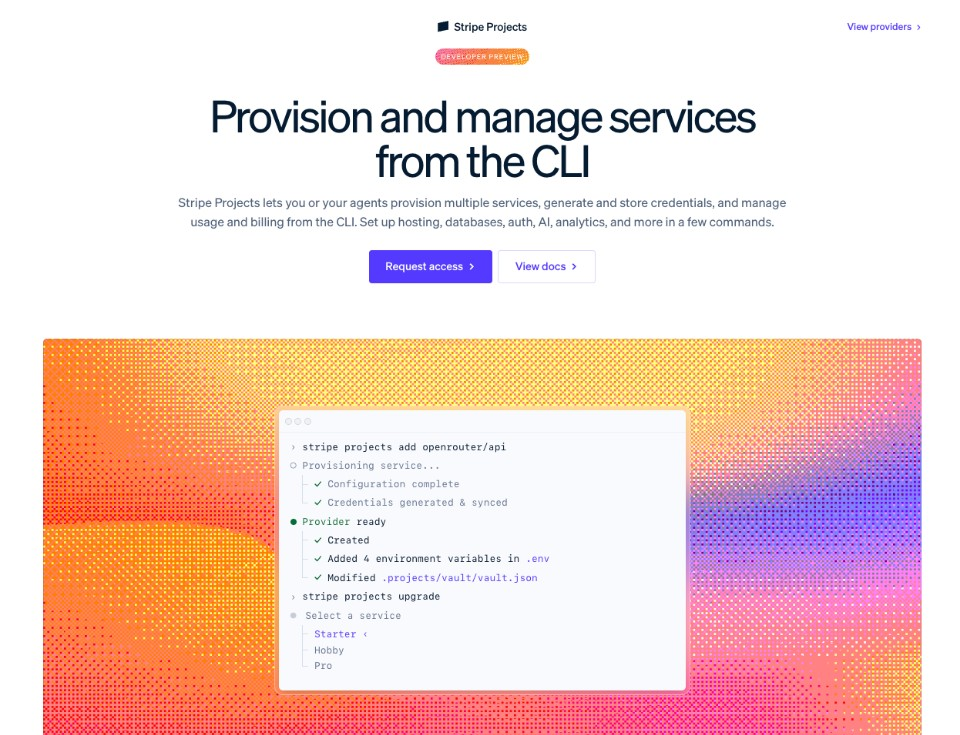
Stripe Projects is a CLI-based developer tool marketplace that lets you provision production-grade services — hosting, databases, auth, analytics, AI, and more — directly from your terminal. OpenRouter is a launch partner, so you can add AI model access to any project with a single command. Browse the full catalog at projects.dev/providers and read Stripe’s docs at docs.stripe.com/stripe-projects.
Why Use Stripe Projects with OpenRouter?
- One command to get started —
stripe projects add openrouter/apiprovisions an OpenRouter account, generates an API key, and syncs it to your.envfile automatically. - Unified billing — Manage all your infrastructure costs (hosting, database, AI) through a single Stripe account.
- Credential management — API keys are stored in Stripe’s encrypted vault and synced to your local environment. Rotate credentials without touching your codebase.
- Agent-friendly — Stripe Projects writes skill files into your project directory, so coding agents can provision and configure services on your behalf.
Prerequisites
- A Stripe account
- The Stripe CLI installed and up to date
- The Projects plugin installed:
Quick Start
Browse the catalog
List every provider or filter down to OpenRouter before installing:
You can also browse the web directory at projects.dev/providers.
Add OpenRouter to your project
If you already have a Stripe project initialized, add OpenRouter in one step:
This provisions an OpenRouter account (or links your existing one), generates an API key, and syncs OpenRouter’s environment variables to your .env file. By default the service is provisioned on the Free plan — see Plans and billing below to upgrade.
Start from scratch
If you’re starting a new project, initialize it first:
Verify your setup
After adding OpenRouter, confirm everything is working:
What Gets Provisioned
When you run stripe projects add openrouter/api, the following happens:
-
Account creation or linking — Stripe Projects finds your OpenRouter account by email or creates a new one automatically. See Account linking for details on each path.
-
API key generation — A dedicated API key (
sk-or-v1-...) is minted and labeled “Provisioned by Stripe” so it’s easy to identify alongside your other keys at openrouter.ai/settings/keys. -
Environment sync — The following variables are stored in Stripe’s encrypted vault and written to your project’s
.env:
Your API key works with the full OpenRouter API, giving you access to 300+ AI models through a single endpoint.
Service Details
Choose a plan
stripe projects add openrouter/api prompts you to choose between the Free and Pay-as-you-go plans when you provision. The Free plan works without a payment method. To switch plans later, use stripe projects upgrade or stripe projects downgrade:
Managing Your OpenRouter Service
Stripe’s remove and rotate commands accept either the local resource name (e.g. openrouter-api) or the <provider>/<service> reference. Use stripe projects services list to see the exact resource names in your project.
Rotate credentials
If you need to rotate your API key (for example, after a team member leaves):
This generates a new API key, disables the old one, and updates your .env file automatically.
Remove the service
To remove OpenRouter from your project and revoke the API key:
Add --only-credentials to forget the local resource without deprovisioning it on OpenRouter’s side.
Sync environment variables
List the project’s environment variables (values are hidden):
If your .env file gets out of sync, pull the latest credentials:
Open the OpenRouter dashboard
Jump straight to your OpenRouter dashboard from the CLI:
Account Linking
Stripe Projects resolves your OpenRouter account by the email on your Stripe account:
- No existing OpenRouter account — A new account is created inline and credentials are returned directly from the provisioning call. No browser pop-up.
- Existing OpenRouter account — Stripe and OpenRouter complete a headless OAuth 2.0 code exchange (against
POST /api/v1/provisioning/oauth/token) to link your account. No browser pop-up in the common case. - Fallback — In rare cases (for example, an idempotent replay before linking completes), you’ll be prompted to open a browser to finish authorizing the connection. Once linked, the association persists across projects in the same Stripe account.
Plans and billing
OpenRouter ships with two plans through Stripe Projects:
- Free — Access free AI models at zero cost. No payment method required.
- Pay-as-you-go — Per-token pricing across 300+ models with no minimum commitment. See openrouter.ai/models for rates.
When you choose a paid plan, Stripe tokenizes your Stripe-stored payment credentials into a Shared Payment Token and grants OpenRouter a payment credential scoped to that upgrade. Your underlying card/bank details are never shared directly.
Manage your payment method on Stripe’s side:
Using with Coding Agents
Stripe Projects is designed to work with coding agents. When you initialize a project, Stripe writes skill files into your project directory so agents can provision and manage services using the same deterministic CLI.
Example prompts for your agent:
- “Add OpenRouter to this project so I can call AI models.”
- “Rotate my OpenRouter API key.”
- “What AI services are available in the Stripe Projects catalog?”
To avoid browser pop-ups during agent-driven provisioning, complete the following flow manually before starting your agent session:
Then let the agent call stripe projects add openrouter/api.
For fully non-interactive provisioning (CI, scripts, agents), pass --json --yes:
To give your agent a combined, up-to-date context document for every provider in your project (including OpenRouter’s quickstart, models, and SDK skills), run:
Next Steps
- Quickstart — Learn the basics of calling the OpenRouter API
- Models — Browse 300+ available models and compare pricing
- API Key Rotation — Best practices for credential management
- Guardrails — Set spending limits and model restrictions
- Provider Selection — Control which providers handle your requests